What’s new in ClipEmber.
November 2026: the new ClipEmber, rebuilt from the ground up — a scheduler for all your short videos, with the clipper built in, an AI agent that can run your calendar and a new look. You could already post your clips; now you can plan any video, on every account you run. Here is everything in it, and what didn’t make it.
November 20, 2026
LinkedIn and Bluesky.
- Schedule videos to your personal LinkedIn profile, up to 3,000 characters of text, and choose who sees each post: anyone or your connections. Company Pages aren’t supported yet. LinkedIn scheduling
- New
- Bluesky
- Connect with your handle and an app password, then schedule videos with alt text and the post language. Analytics shows likes, reposts and replies. Bluesky scheduling
- New
- Autopilot on every network
- Autopilot can now propose and publish posts to every network you’ve connected, not only TikTok, YouTube and Instagram. Each caption is fitted to the network’s limit, and LinkedIn posts use the audience you pick in the automation.
- Better
November 2026
Meet the new ClipEmber.
The biggest update since we started — six big changes first.
01 New
Any video, every account
Upload a finished video (up to 1 GB) or bring one in from a link and schedule it as it is — or use a clip. Pick every account you post to, several per network, write one caption or one per network, see how each network cuts it, and take a suggested time from your own views.
Everything in the editor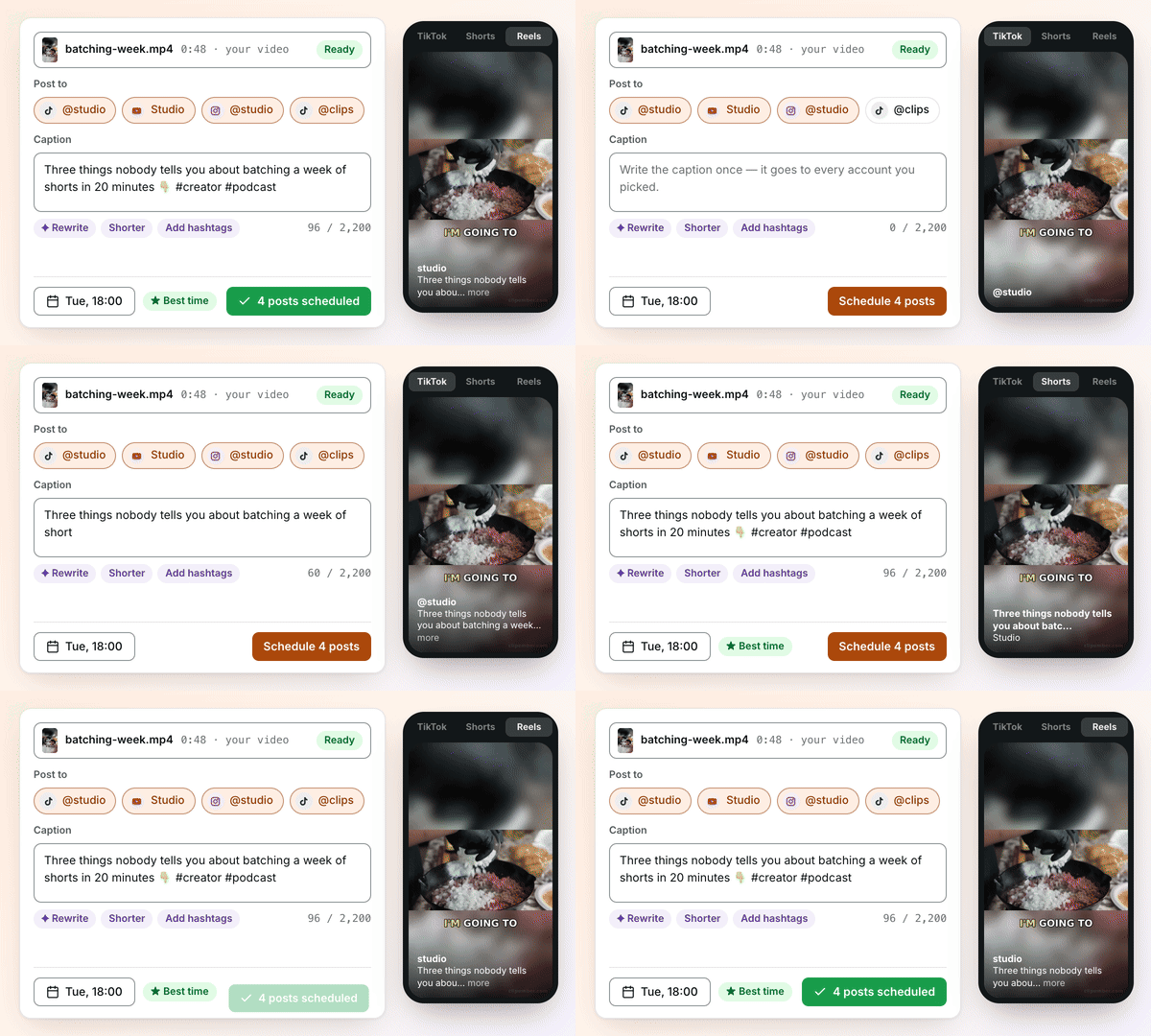
02 Better
One calendar for every account
Plan the week for TikTok, YouTube Shorts and Instagram Reels in one place — several accounts per network, month, week, day and list views, drag a post to move it. Posts go out through each platform’s official API.
How scheduling works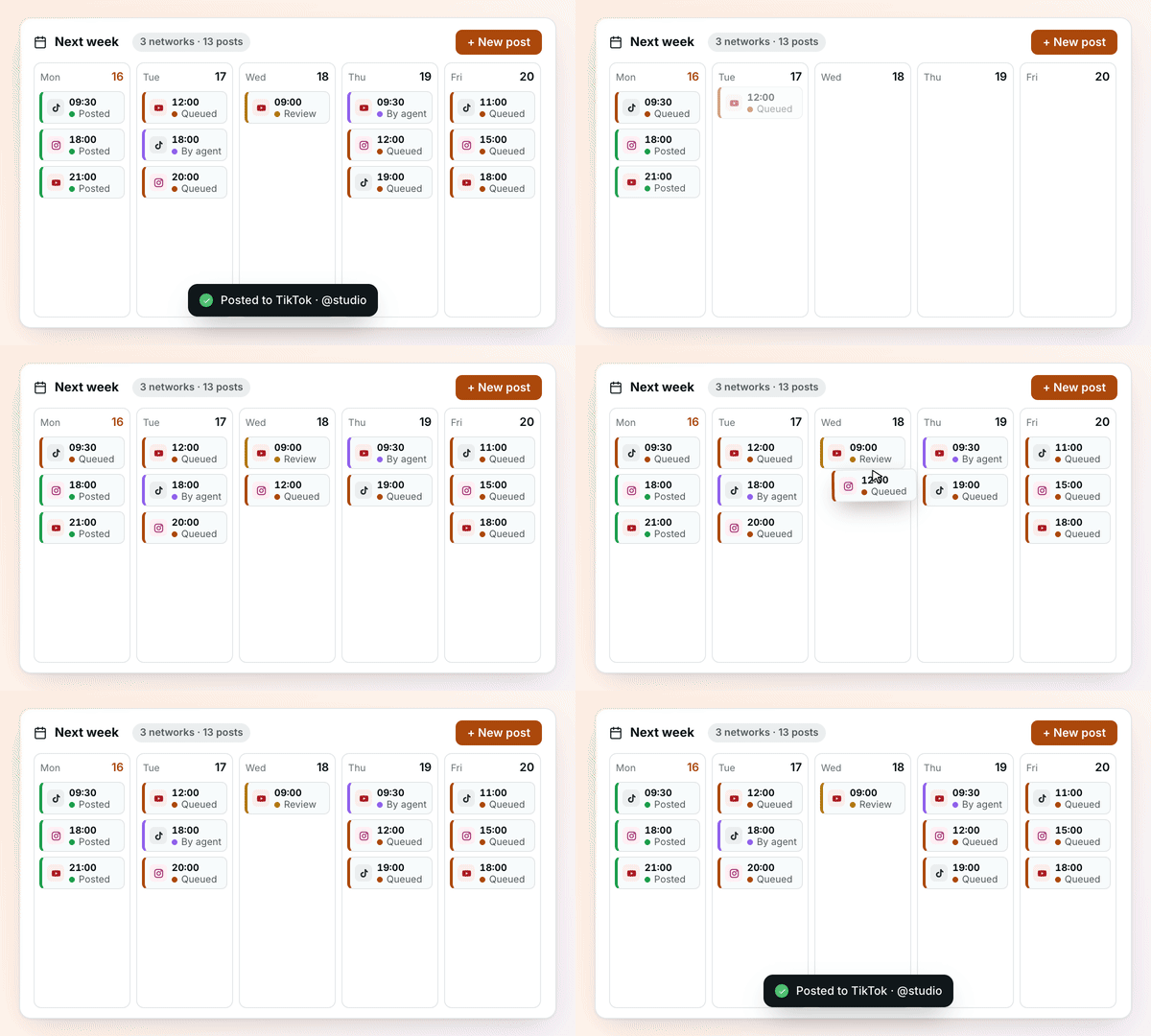
03 Better
Your clips go straight onto the calendar
Clipping now ends on the calendar. “Schedule all” puts several clips on next week at once — one a day, or into your posting slots — each with its own AI caption.
From a clip to a scheduled post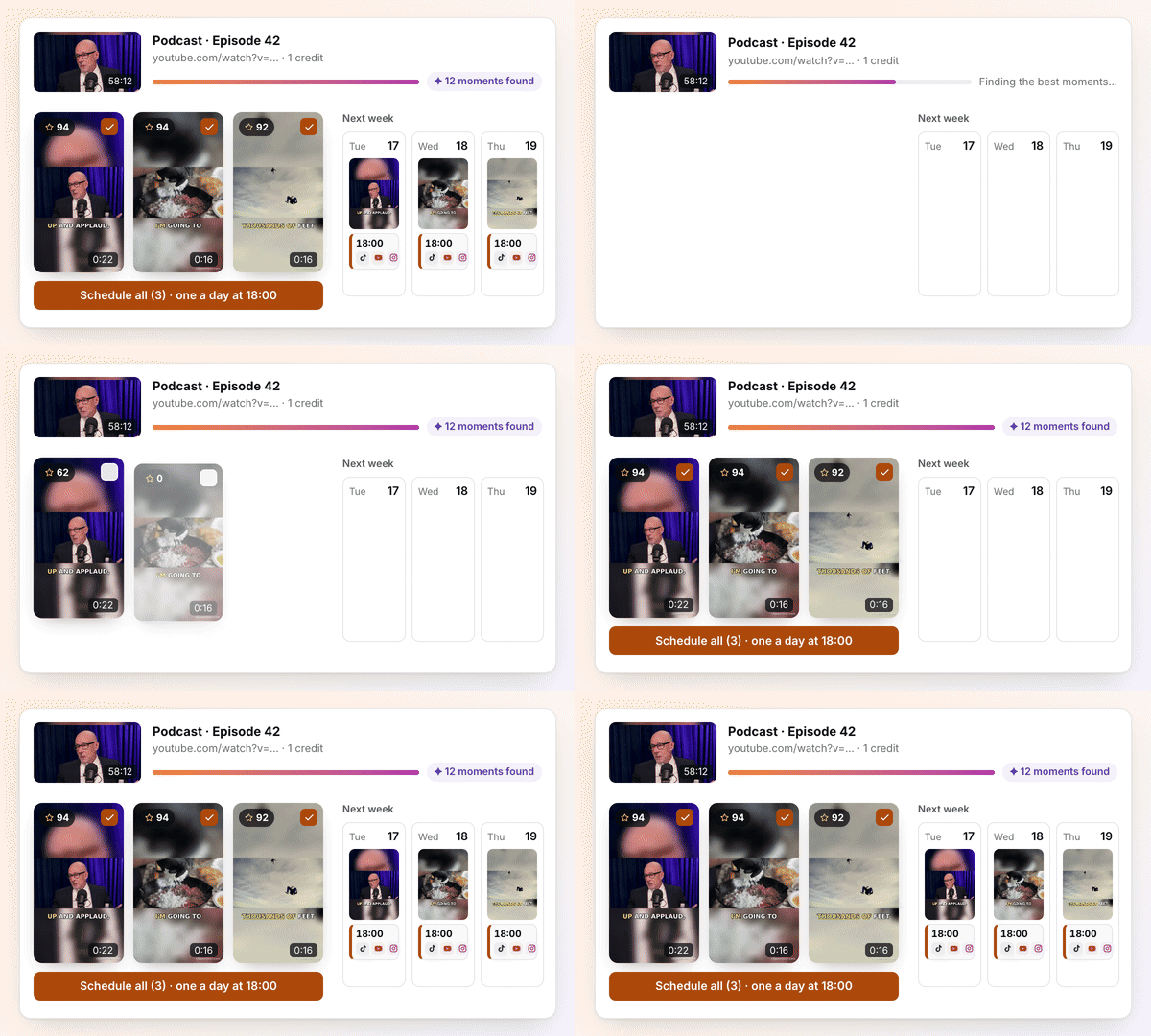
04 Better
Claude and ChatGPT can run your whole calendar
Add ClipEmber as a connector and ask in plain words. The agent finds clips, schedules, moves and retries posts, and edits them — everything lands on your calendar. Works on every plan.
Connect via MCP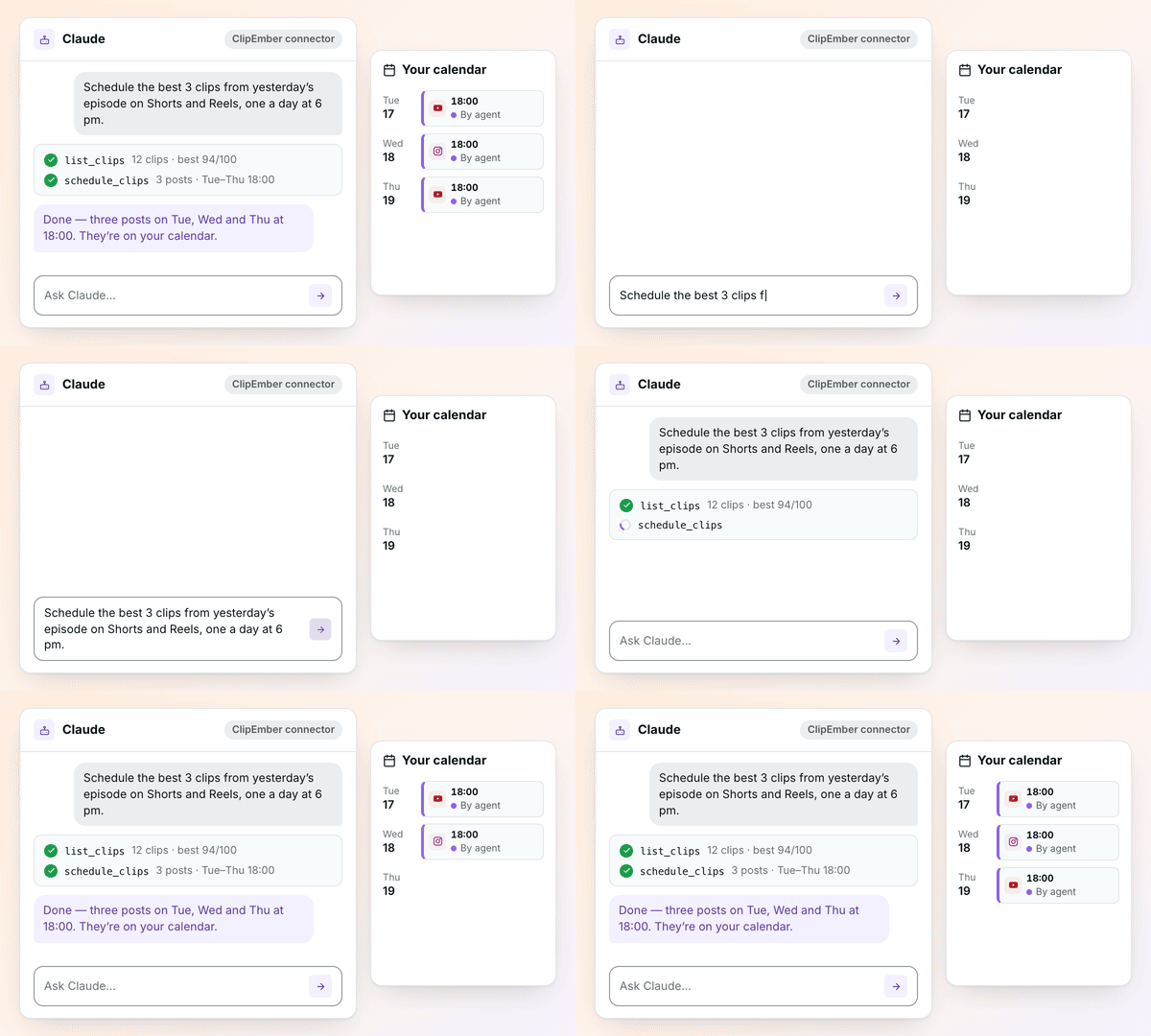
05 New
Teams, clients and approvals
Clients approve from a link without an account. On Pro and Agency, invite your team, turn on team approval, and talk it through in comments on the post.
How approvals work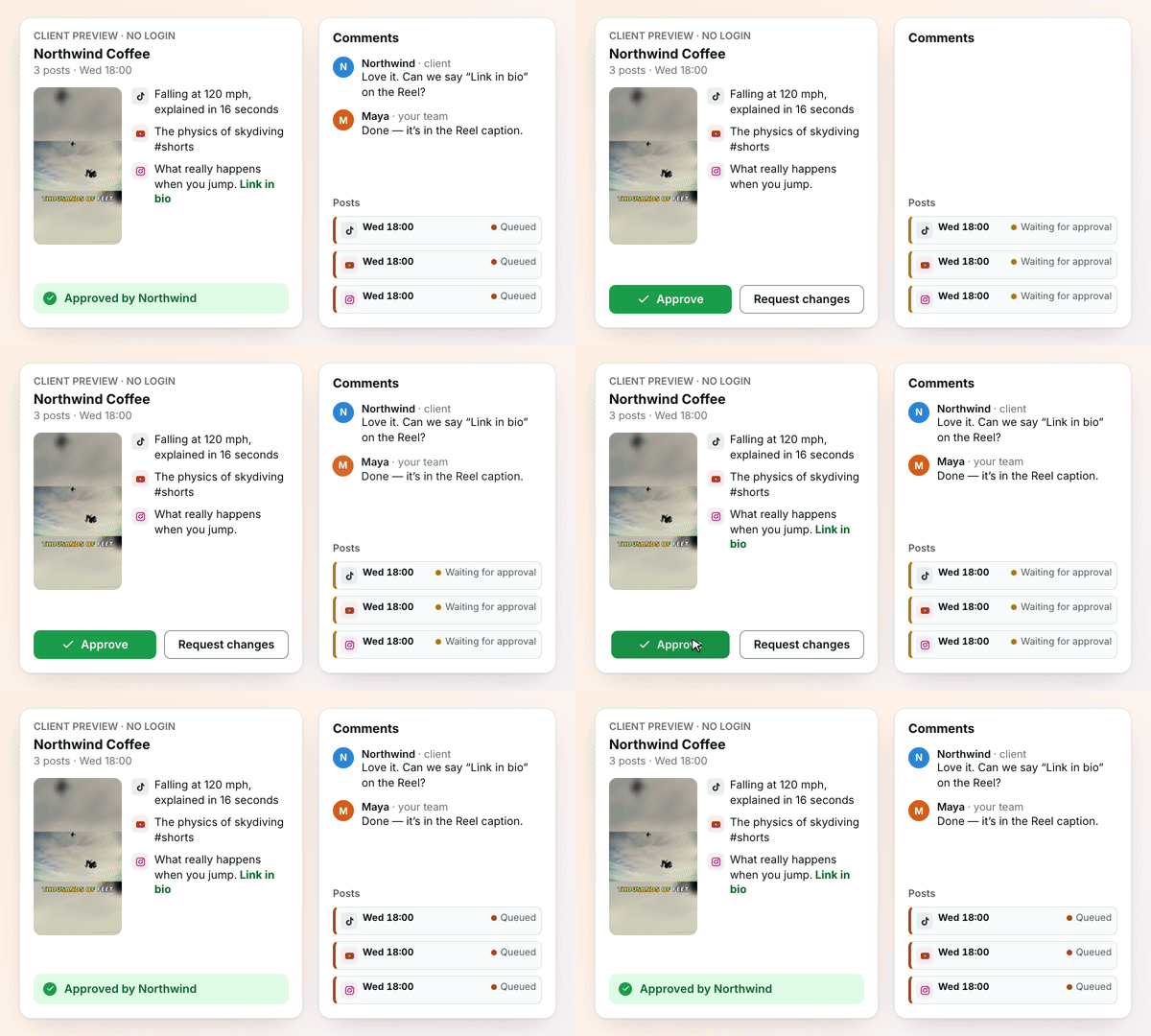
06 Rebuilt
Captions, rebuilt from scratch
We rebuilt how clips are captioned: words light up as they’re said, lines break where people pause, silence and music stay silent, and you can pick the spoken language yourself.
Try it on a video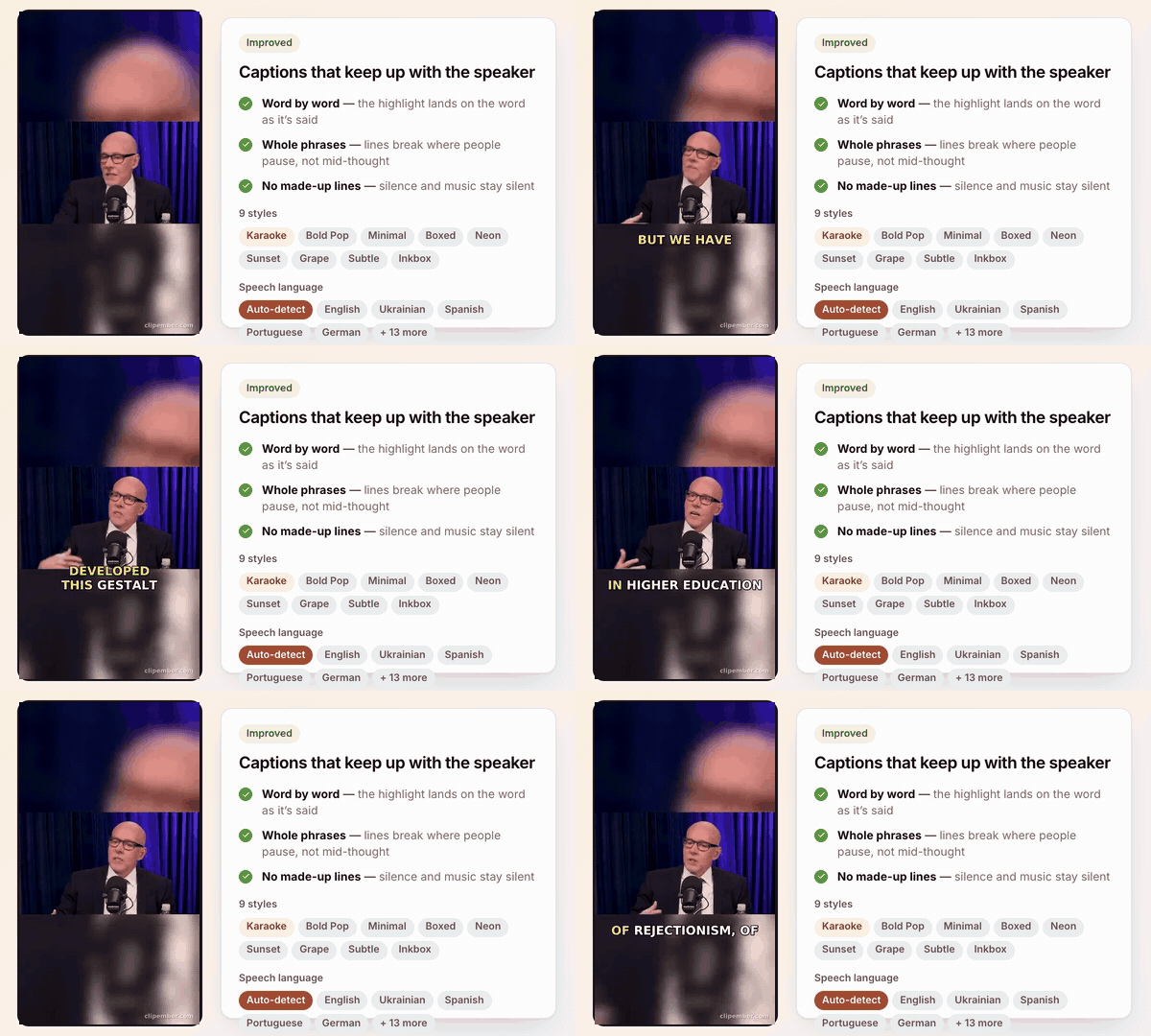
About the captions numbers. On our own test set (15 cases of synthetic speech and music), misheard words fell from 9.9% to 2.5%, made-up lines on silence from 7 to 0, and the karaoke highlight drifted 63 ms from the spoken word instead of 334 ms. Real videos vary; we’ll publish numbers from them as we measure.
Scheduling
Scheduling, in detail.
- Your own videos
- Upload a video (up to 1 GB, 15 minutes) or import one from a link, and schedule it without going through Clips. A preview is ready in about a minute.
- Calendar
- Month, Week, Day and List views. Week and Day show the hours: hover an hour and press + to post then, or drag a post to another hour. The address keeps the view and the date.
- Time zones
- The calendar and emails use your time zone, a 12- or 24-hour clock and the first day of the week you pick.
- Best time to post
- Once an account has 10 published posts with views, the editor suggests the best days and hours and Analytics shows a heat map. Until then it says how many more it needs.
- AI help with captions
- Rewrite, Shorter and Add hashtags next to the caption, with a daily limit per plan. If the AI is unavailable, it says so and doesn’t use up your limit.
- Network previews
- Switch networks in the editor to see the account and the caption as that network shows it, with a warning when hashtags or links would be hidden.
- Slots, repeats, templates
- Posting slots that fill a queue, repeating posts, tags, caption templates and signatures. New accounts start with sensible slots.
- Duplicate and fix in bulk
- Duplicate any post. Filter the list by status, tick failed posts and retry them or move each to its account’s next free slot.
- Pause an account
- Pause and resume from Connections, the API or MCP. Posts whose time passed during a pause are not published late.
- Media library
- Every uploaded video with its length, how many posts use it and when it will be deleted. Filter, sort and search.
- Keyboard shortcuts
- Press ? on the calendar for the list.
Reliability
When something goes wrong, you know why.
- Plain reasons
- When a post fails you see why and the fix — “Reconnect account”, “Edit post” or “Retry now” — the same in the post, the bell, the email and the webhook. Every reason
- No silent late posts
- A post more than an hour late (after an outage, for example) is marked failed with “Reschedule it or post it now”, not published at a surprising time.
- Unconfirmed, not doubled
- If a network doesn’t confirm a post in time, it’s marked unconfirmed so you check your profile before retrying.
- Morning waves
- Posts due in the same minute across many accounts go out several at a time — in our test, 50 posts landed in under 4 minutes instead of 14.
- Emails you control
- Failed posts, posts that went out, accounts whose queue ran empty, a weekly summary — each one switchable in Email settings.
- Notifications bell
- Failed posts, client comments and approvals, teammates, videos about to be deleted — with an unread count.
Teams and clients
Work with clients and a team.
- Clients
- Group accounts by client, and send a client a link to connect their own account without signing up.
- Client approval
- The client watches the video, comments and approves without an account; you get an email for each reply. Editing an approved post resets the approval.
- Team
- Invite teammates to your workspace; everyone works on the same accounts, posts and videos.
- Pro, Agency
- Team approval and comments
- Members’ posts can wait for an owner or admin. Comments on every post, with a counter on the calendar.
- Pro, Agency
Agents and API
For agents and developers.
- MCP
- Agents can schedule clips in bulk, edit posts, pause and resume accounts, read and add comments, list media and notifications.
- Every plan
- REST API and webhooks
- Every public endpoint is documented; post.published and post.failed webhooks are signed with HMAC.
- Pro, Agency
- Safer keys
- Creating API keys, deleting the account and opening billing need a signed-in browser session — a leaked key can’t mint a new one.
Plans
What it costs.
- Free
- Publishes 3 videos a month (one video to several networks counts once), plus 5 free clip videos. Your AI agent connects on every plan.
- Fewer accounts
- Moving to a plan with fewer accounts pauses the extra ones instead of deleting them; you choose which stay active.
- Not in this release
- A “first comment” on posts — Instagram needs a Meta review, YouTube a new Google verification, and TikTok has no comments API.
Fill next week’s calendar.
Every new account gets 7 days of Pro. No card.